Overview
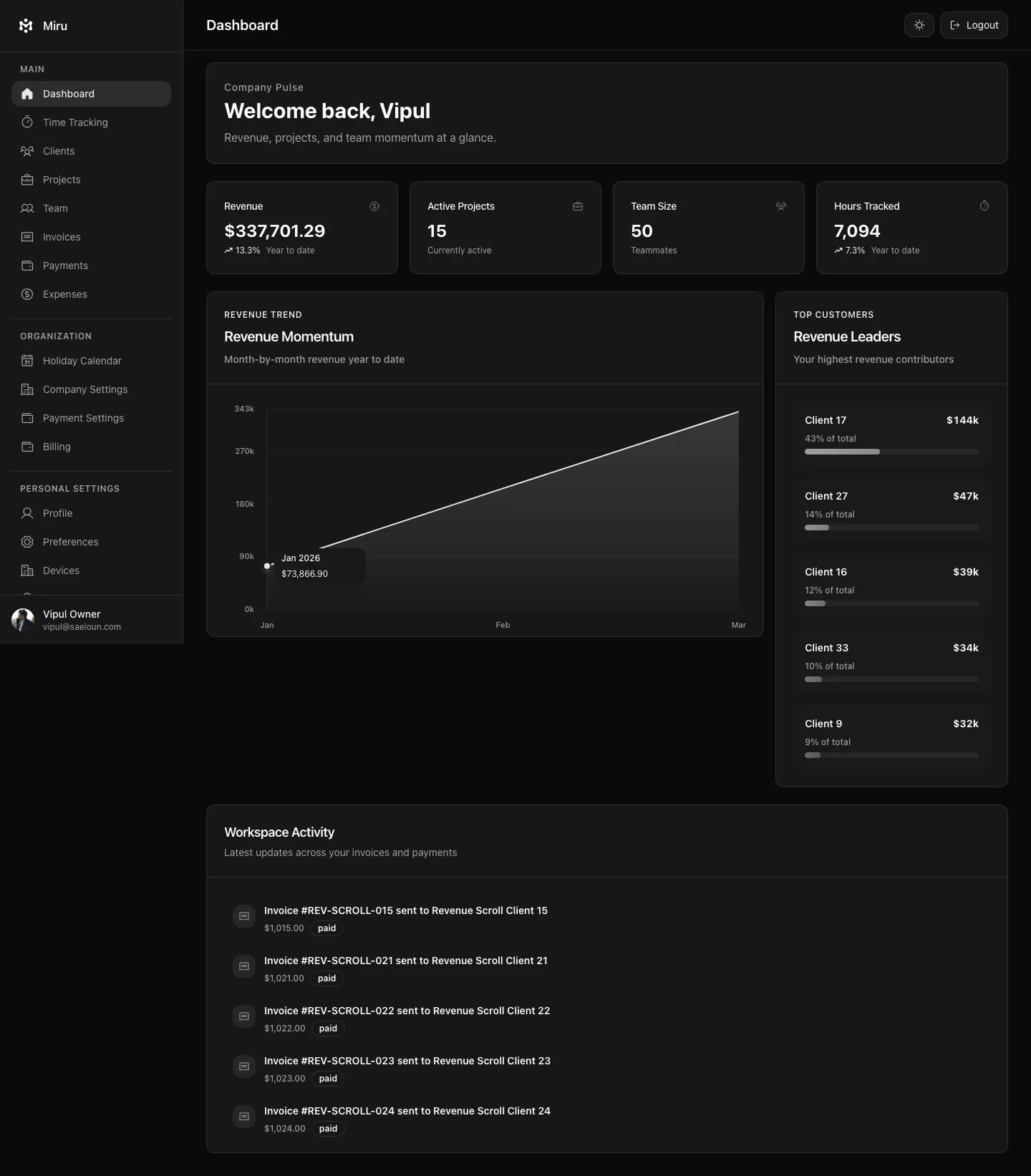
Miru CLI is the command-line interface for Miru.
It is intended to work equally well for:
- humans working in a terminal
- shell scripts and automation
- AI agents acting on behalf of a user
The CLI does not have a separate permission model. Every command runs with the same access and scoping rules as the authenticated Miru user.
Install
Hosted or public install
curl -fsSL https://miru.so/install.sh | shThis downloads a prebuilt miru binary for macOS or Linux into ~/.local/bin/miru and verifies its checksum. No Go toolchain needed. Windows users can download miru-windows-amd64.exe from the miru-cli releases.
Build from source
If you would rather build it yourself, this uses mise and Go 1.25.12:
curl -fsSL https://raw.githubusercontent.com/saeloun/miru-web/develop/tools/miru-cli/install.sh | bashLocal development install
From the repo:
cd tools/miru-cli
mise exec -- env GOBIN="$HOME/.local/bin" go install ./cmd/miru
Requirements
mise- a Miru user account
- access to a Miru instance, hosted or self-hosted
Authentication
Log in with email and password:
miru login --email user@example.comThe CLI prompts for the password.
By default this uses:
https://app.miru.soFor local or self-hosted Miru:
miru login --base-url http://127.0.0.1:9000 --email user@example.com
miru config set-base-url --url http://127.0.0.1:9000
Session behavior
- The CLI stores its session in
~/.config/miru/config.json - The token is a dedicated CLI bearer token, not the user’s main app token
- The session lasts 7 days
- Every successful CLI request refreshes the expiry for another 7 days
miru logoutrevokes the server-side CLI session and removes local credentials
Config
The local config file lives at:
~/.config/miru/config.jsonCurrent shape:
{
  "base_url": "https://app.miru.so",
  "token": "..."
}
Config commands
Show current config:
miru config showSet a different Miru instance:
miru config set-base-url --url http://127.0.0.1:9000Command Reference
Global
miru help
Shows the available command surface.
miru version
Prints the installed CLI version.
miru capabilities
Shows the current supported command set as JSON.
miru whoami
Fetches the current authenticated user and workspace.
miru logout
Revokes the CLI session and removes local credentials.
Upgrade the CLI
Re-run the installer:
curl -fsSL https://miru.so/install.sh | shProject Commands
miru project list
Lists projects visible to the authenticated user.
Options:
--search <term>filters projects by search term
Examples:
miru project list
miru project list --search solar
Use this command to find the project_id required by miru time create and miru time update.
Client Commands
miru client list
Lists clients visible to the authenticated user.
Options:
--query <term>optional search term
Examples:
miru client list
miru client list --query solar
Expense Commands
miru expense list
Lists expenses visible to the authenticated user.
The response also includes category names accepted by miru expense create. Vendors are free text, so pass any name to --vendor.
Options:
--query <term>optional search term
Examples:
miru expense list
miru expense list --query travel
miru expense create
Creates an expense in the current workspace.
Options:
--amount <amount>required--date <YYYY-MM-DD>required--category <name>required--vendor <name>optional--description <text>optional--type <business|personal>optional, defaults tobusiness
Examples:
miru expense create --amount 42.25 --date 2026-03-09 --category "Meals" --description "Lunch with client"
miru expense create --amount 125.50 --date 2026-03-09 --category "Travel" --vendor "Acme Cabs" --type business
Time Commands
miru time list
Lists the authenticated user’s timesheet entries for a date range.
Options:
--from <YYYY-MM-DD>--to <YYYY-MM-DD>
Example:
miru time list --from 2026-03-01 --to 2026-03-09miru time create
Creates a timesheet entry for the authenticated user.
Options:
--project-id <id>required--duration <minutes>required--date <YYYY-MM-DD>required--note <text>optional--bill-status <status>optional, defaults tounbilled
Example:
miru time create \
  --project-id 2 \
  --duration 90 \
  --date 2026-03-09 \
  --note "Worked on invoice flow" \
  --bill-status unbilled
Example prompt for daily Jira-to-Miru drafting:
Pull all work I did in Jira today, summarize it hour by hour when the issue history supports that, or collapse it into one full-day summary when it does not. Use `miru project list` to find the best matching Miru project, then draft the exact `miru time create` commands I should run. Do not submit anything until I approve the draft.If you want the agent to submit after review, use:
Pull all work I did in Jira today, summarize it hour by hour when the issue history supports that, or collapse it into one full-day summary when it does not. Match each block to the best Miru project, show me the draft first, and only after I approve it run the `miru time create` commands.miru time update
Updates one of the authenticated user’s own timesheet entries.
Options:
--id <id>required--project-id <id>required--duration <minutes>required--date <YYYY-MM-DD>required--note <text>optional--bill-status <status>optional, defaults tounbilled
Example:
miru time update \
  --id 631 \
  --project-id 2 \
  --duration 45 \
  --date 2026-03-09 \
  --note "Adjusted after review"
miru time delete
Deletes one of the authenticated user’s own timesheet entries.
Options:
--id <id>required
Example:
miru time delete --id 631Import Commands
Export a Harvest Detailed Time CSV from Reports > Detailed Time, set the range to All Time, then choose Export > CSV.
Run a dry run first:
miru import --file harvest-detailed-time.csv --format harvest --dry-runHarvest exports names but not email addresses. When a name does not exactly match a Miru team member, map it to an existing workspace email. --map can be repeated:
miru import \
  --file harvest-detailed-time.csv \
  --format harvest \
  --dry-run \
  --map "Paul Connors=paul@example.com" \
  --map "Jane Doe=jane@example.com"
To assign every otherwise unmatched Harvest user to one team member:
miru import --file harvest-detailed-time.csv --format harvest --dry-run --assign-unmatched-to owner@example.comAfter the dry run is clean, omit --dry-run to start the import. The CLI polls until it completes:
miru import --file harvest-detailed-time.csv --format harvest --map "Paul Connors=paul@example.com"Time entries are the default and only supported import type. --type time may be supplied explicitly.
Check an existing import:
miru import status --id 42Invoice Commands
miru invoice list
Lists invoices visible to the authenticated user.
Options:
--query <term>search term--page <page>pagination page--per <count>page size--status <status>invoice status filter
Examples:
miru invoice list
miru invoice list --status draft
miru invoice list --query INV0001 --page 1 --per 20
miru invoice create
Creates a draft invoice from explicit values. All four options and at least one line item are required.
miru invoice create --client-id 7 --invoice-number INV-847 --issue-date 2026-03-31 --due-date 2026-04-30 \
  --line-item "March services|Monthly retainer|2026-03-31|150|960"
The line item is name|description|YYYY-MM-DD|rate|minutes; 960 minutes at 150 bills 16 hours for 2,400. Repeat --line-item for more rows. The draft appears under Invoices for review; send it with miru invoice send.
miru invoice show
Shows one invoice in detail.
Options:
--id <id>required
Example:
miru invoice show --id 1miru invoice send
Sends an invoice email.
Options:
--id <id>required--recipients <email1,email2>required, comma-separated--subject <text>optional--message <text>optional
Example:
miru invoice send \
  --id 1 \
  --recipients client@example.com,finance@example.com \
  --subject "Your invoice from Miru" \
  --message "Please review and pay online."
Payment Commands
miru payment list
Lists payments visible to the authenticated user.
Options:
--query <term>optional search term
Examples:
miru payment list
miru payment list --query INV0003
miru payment show
Shows one payment.
Options:
--id <id>required
Example:
miru payment show --id 1Common Workflows
Check current identity
miru whoamiFind a project id, then create time
miru project list --search solar
miru time create --project-id 2 --duration 30 --date 2026-03-09 --note "CLI entry"
Correct a time entry
miru time list --from 2026-03-09 --to 2026-03-09
miru time update --id 631 --project-id 2 --duration 45 --date 2026-03-09 --note "Adjusted entry"
Send an invoice
miru invoice list --status draft
miru invoice send --id 1 --recipients client@example.com
Security and Scoping
- CLI requests use a dedicated bearer token
- the CLI session is tied to a user and workspace
- all normal authentication and authorization remain in force
client listrespects the authenticated user’s normal client visibilityexpense listandexpense createstay restricted to roles already permitted by the appproject list,invoice list/show/send, andpayment list/showall use the same app permissions as the web UItime createis scoped throughProjectPolicy::Scopetime updateandtime deleteare scoped to the authenticated user’s own entries in the current workspace- the CLI cannot impersonate another user when creating time
API Mapping
miru login->POST /api/v1/users/loginmiru logout->DELETE /api/v1/cli/sessionmiru whoami->GET /api/v1/users/_memiru capabilities->GET /api/v1/cli/capabilitiesmiru client list->GET /api/v1/cli/clientsmiru project list->GET /api/v1/projectsmiru expense list->GET /api/v1/cli/expensesmiru expense create->POST /api/v1/cli/expensesmiru invoice list->GET /api/v1/invoicesmiru invoice show->GET /api/v1/invoices/:idmiru invoice send->POST /api/v1/invoices/:id/send_invoicemiru payment list->GET /api/v1/paymentsmiru payment show->GET /api/v1/payments/:idmiru time list->GET /api/v1/timesheet_entrymiru time create->POST /api/v1/cli/timesheet_entriesmiru time update->PATCH /api/v1/cli/timesheet_entries/:idmiru time delete->DELETE /api/v1/cli/timesheet_entries/:id
Troubleshooting
missing CLI credentials: run miru login
Log in again:
miru login --email user@example.comWrong server
Point the CLI at the correct Miru instance:
miru config set-base-url --url http://127.0.0.1:9000Need the project id for time entry commands
Use:
miru project list
miru project list --search <term>
CLI session expired
Run:
miru login --email user@example.comUpgrade later
Re-run the installer:
curl -fsSL https://miru.so/install.sh | shCurrent Scope
Version 0.3.0 currently supports:
- client listing
- expense list/create
- authentication, session token and config management
- project listing
- time list/create/update/delete
- invoice list/create/show/send
- Harvest CSV import
- payment list/show