How to Migrate from Harvest to Miru in 10 Minutes
A step-by-step guide to switching from Harvest to Miru. Export your data, import via CLI, and start saving 90% on your time tracking bill.
 Vipul A M · · 2 min read
Step 1: Export everything from Harvest
Log into Harvest. Go to Reports > Detailed Time. Set the date range to “All Time” (or however far back you want). Click Export CSV. That file is your entire time tracking history — dates, hours, projects, clients, descriptions, billing status.
If you use Harvest’s expense tracking, do the same thing: Reports > Expense Report > Export CSV.
Save both files somewhere you won’t lose them for the next five minutes.
Step 2: Sign up for Miru
Go to app.miru.so/signup. Name your organization. Pick your timezone. You’re in. The whole thing takes about 60 seconds. No credit card. No “schedule a demo” button.
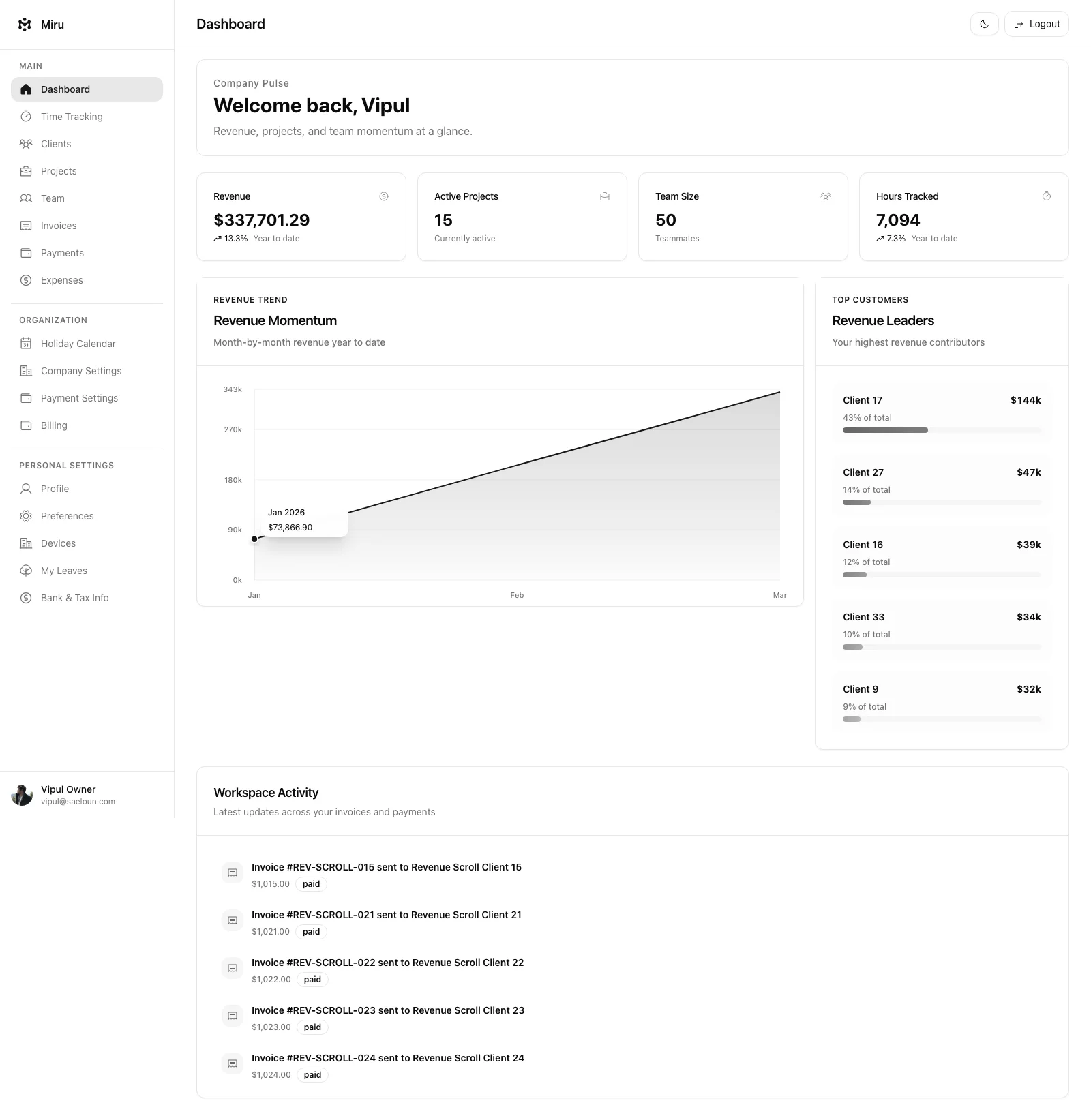
Free tier covers 5 users with full features. Pro is $1/member/month for unlimited users. That’s not a promotional price. That’s the price.
Step 3: Install the CLI and import
The Miru CLI understands Harvest’s CSV format natively. No column mapping. No manual reformatting. Install and import:
curl -fsSL https://miru.so/install.sh | sh
miru login
miru import --file harvest-time.csv --format harvest
The CLI creates clients and projects automatically from your Harvest data. Time entries land in the right projects with the right dates and descriptions. For expenses:
miru import --file harvest-expenses.csv --format harvest --type expensesIf you don’t like CLIs, the web importer in Settings > Import Data does the same thing with a drag-and-drop interface.
Step 4: Invite your team
Go to Team > Invite in Miru. Paste your team’s email addresses. Pick roles — Admin, Employee, Book Keeper, whatever fits. Send. They get an email, click a link, and they’re logging time.
The interface is simpler than Harvest. If anyone on your team could use Harvest, they can use Miru without training. The timer works the same way. Manual entry works the same way. The difference is what happens downstream: invoicing, expenses, and payments are all built into the same tool.
Step 5: Cancel Harvest
Log into Harvest. Settings > Subscription > Cancel. They’ll offer you a discount. Do the math: even at half price, Harvest still costs 5x more than Miru Pro. Close the tab.
Redirect that budget to something useful. Better monitors. A team lunch. A junior hire’s first month of coffee.
Why now?
Every month you wait costs you money. Not metaphorically — literally. The price difference between Harvest and Miru for a 20-person team is $196/month. That’s $2,352 a year you’re donating to Harvest for the privilege of using a closed-source time tracker with no CLI.
The migration takes 10 minutes. The ROI is immediate. Stop overthinking it and start the switch.
Hard Stop
Run this loop for two weeks without skipping cleanup. The compounding effect is real.
Start with Miru or read the docs.
Vipul A M
Co-founder at Saeloun. Building Miru. Rails contributor. Shipping from Pune, India.
Put it to work
Run one cleaner billing cycle in Miru.
If this article is about tracking time, billing clients, comparing tools, or automating work, Miru is the product version of that idea. Start for $1/member, invite the team, and send the next invoice from tracked work.
What you get
- Time tracking, invoices, expenses, and payments in one place.
- $1 per member per month. Free if you self-host.
- Open source, with CLI, API, MCP, and self-hosting paths.
The article is the argument. Miru is the workflow.
Track the work, approve the hours, send the invoice, and get paid without bolting together three separate tools.