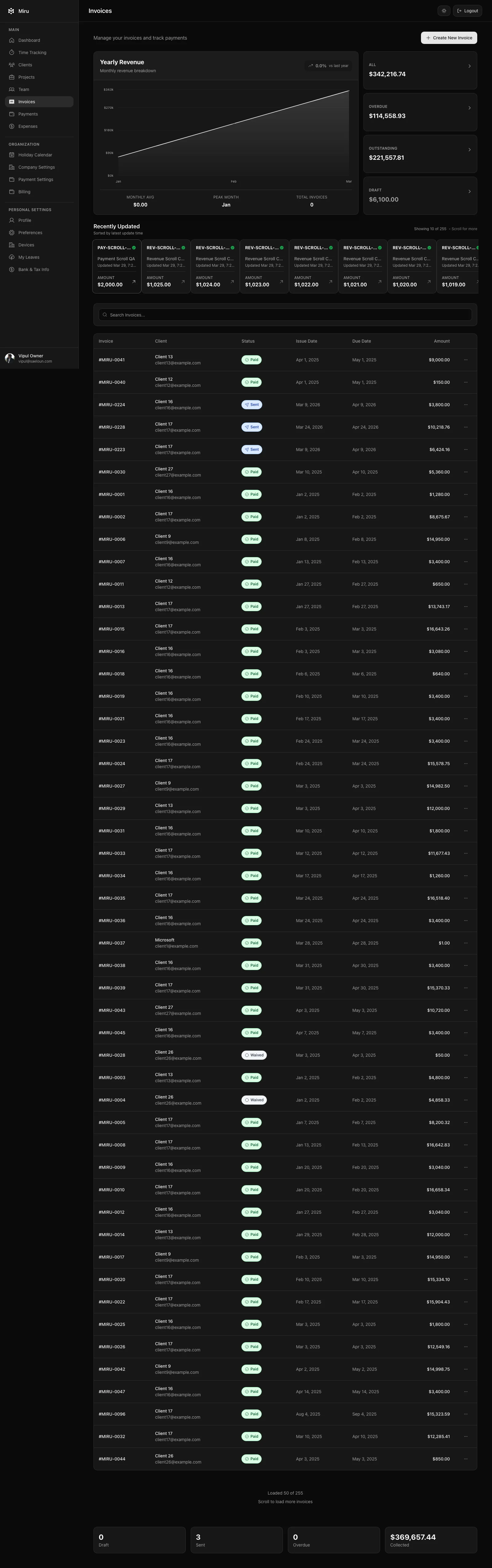
Open an invoice, or use the row menu on the Invoices page. The actions offered depend on the invoice’s status.
| Action | Available when | What it does |
|---|---|---|
| Send invoice | Any status; the app refuses to send a paid invoice | Emails the invoice to up to five recipients with a link to view and pay online. |
| Download PDF | Any status except draft | Saves the invoice as a PDF for your records or to attach elsewhere. |
| View history | Any status | Shows when the invoice was sent, viewed and paid. |
| Send reminder | Overdue only | Emails the client a payment reminder. |
| Mark as paid | Sent, viewed or overdue | Records a manual payment, for example a bank transfer, and sets the status to paid. |
| Waive off | Sent, viewed or overdue | Writes the invoice off. It stops counting as outstanding. |
| Delete | Any status | Removes the invoice. Only deleting a draft unlocks its time entries so they can be invoiced again. |
Getting paid online
The link in the invoice email lets the client pay by card through Stripe. Workspaces that invoice in Indian rupees can also offer UPI (a UPI ID or QR code) and Razorpay payment links; enable these under Payment Settings. Payments received through a link update the invoice to Paid automatically.
Owners and admins can perform all of these actions. Book keepers can view and download.