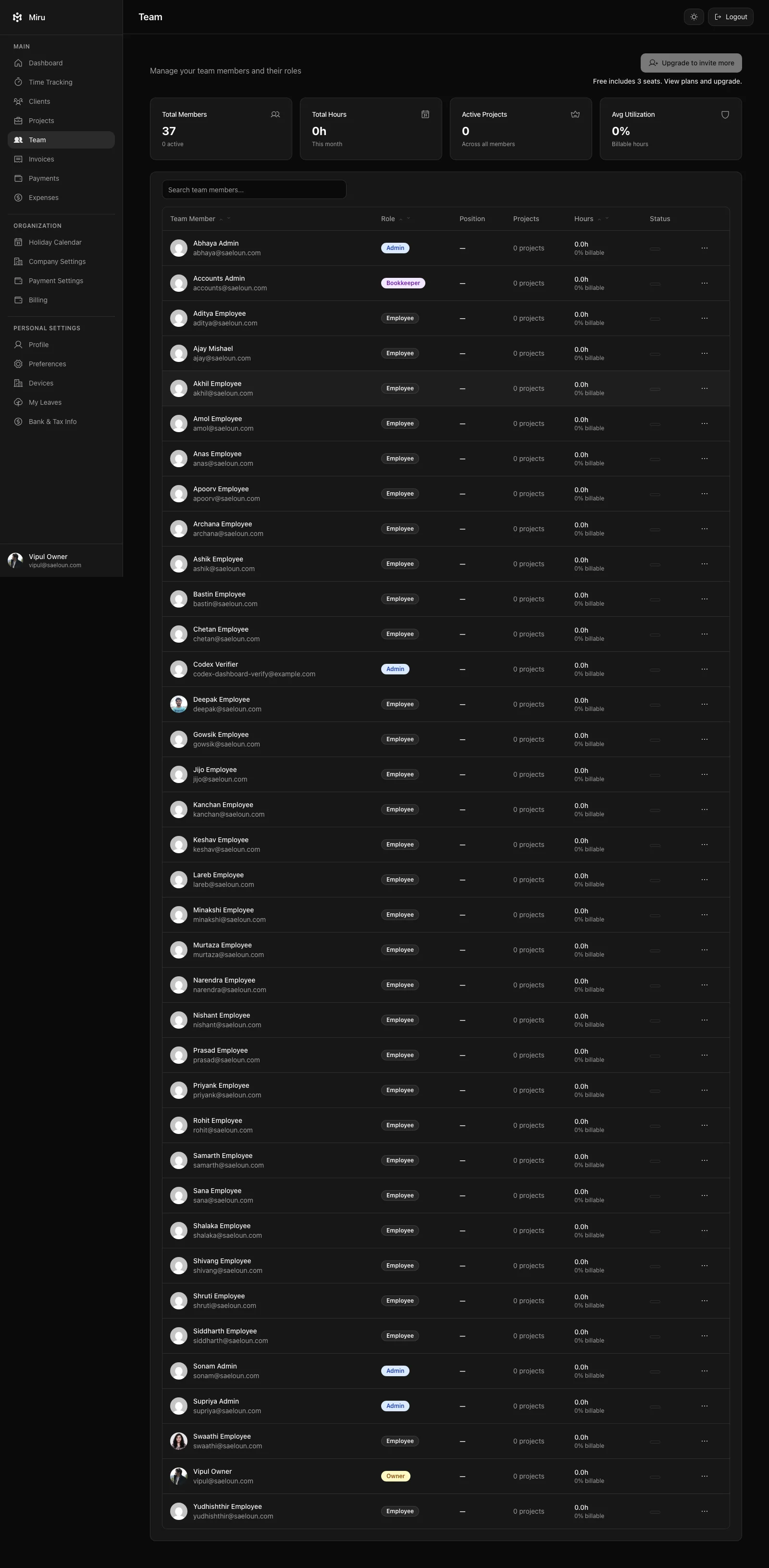
Open Team in the sidebar to see everyone in your workspace. Active members and pending invitations appear in the same list, each with a name, email and role.
Roles
| Role | What they can do |
|---|---|
| Owner | Everything, including inviting another owner. The person who created the workspace. |
| Admin | Manage clients, projects, team, invoices and reports. Cannot remove owners. |
| Employee | Track time on projects they are a member of and see their own timesheet. |
| Bookkeeper | See clients, invoices and reports, and record payments; cannot edit them. |
| Client | A contact at one of your clients who can log in to see that client’s invoices. Client seats do not count towards your team. |
What you can do here
- Invite someone with Invite Member. See Adding a new team member.
- To resend an invitation, choose Delete Invite, then invite the person again with Invite Member. Invitations expire after 14 days.
- Change a role or edit a member’s details.
- Remove a member. Before confirming, Miru shows what the removal affects: the projects they are assigned to, their unbilled time entries and the uninvoiced amount. Owners cannot remove themselves.
Only owners and admins can invite, edit or remove members.