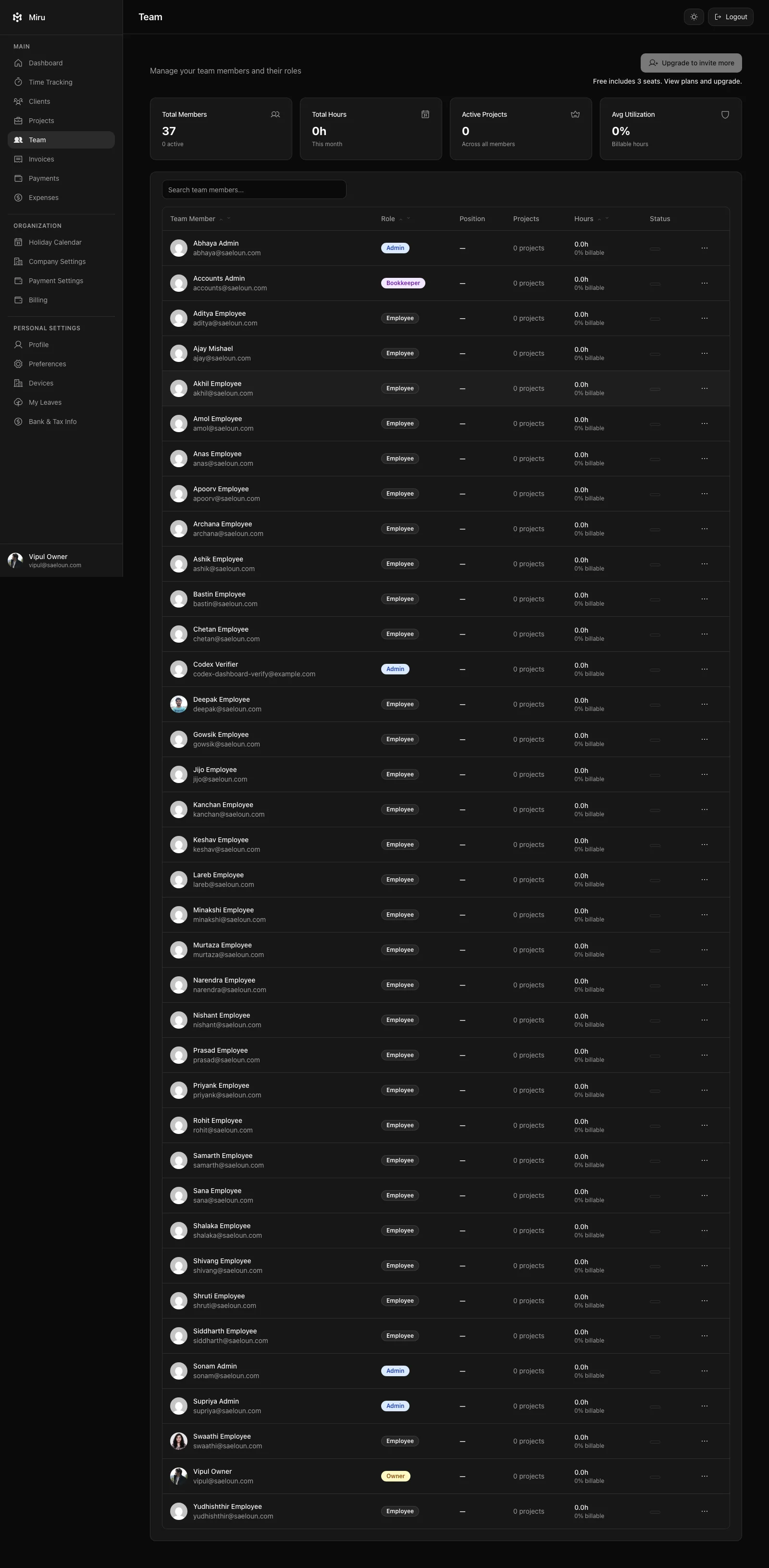
Team members are invited by email. They join with the role you choose and can start logging time as soon as they are added to a project.
Steps
-
Go to Team and click Invite Member.
-
Fill in the form:
Field Notes First name, Last name Required, letters and spaces only, up to 20 characters each. Email The address the invitation is sent to. It cannot be changed after sending; delete the invitation and create a new one instead. Role Admin, Employee, Bookkeeper or Client. Only an existing owner can make someone an owner. -
Click Invite Member.
The person appears in the team list as a pending invitation until they accept.
What the invitee sees
- The email contains a link that is valid for 14 days.
- Someone new to Miru is taken to a page to set their password, then straight into your workspace.
- Someone who already uses Miru (for example, a contractor in another workspace) just gets your workspace added to their account.
- A Client invite links the person to that client, so they see only that client’s invoices.
If the invitation does not arrive
Choose Delete Invite, then invite the person again with Invite Member. Duplicate invitations to the same address are rejected.
Only owners and admins can invite people.