Docker Setup Guide
Make sure you have Docker installed on your system. If not please follow this guide.
Note: This app uses Rails 8.0.2 with Ruby 4.0.1 and Node 25.8.2. The Docker setup includes PostgreSQL for the database and Solid Queue for background jobs.
Make sure to stop your local PostgreSQL service while using Docker to avoid port conflicts.
Installation
1. Fork repository to your account
2. Clone the repo to local
$ git clone https://github.com/<your-name>/miru-web.git3. Go to the project directory
$ cd miru-web/4. Start Docker containers for your services
To start all docker services defined in docker-compose.yml, Run:
$ docker compose upWait for Docker to build the image defined in Dockerfile.local and start your containers for defined services in docker-compose.yml.
Once the database service is up, Vite will compile the assets, and you will see your Rails server running with Solid Queue (database-based background job processor).
5. Setup database
Once you see everything running correctly, Open a new terminal tab and run:
$ docker-compose exec app bundle exec rails db:resetOR you can exit out of the running server by pressing Ctrl + C and run:
$ docker-compose run --rm app bundle exec rails db:resetNote that db:reset and db:setup both will work here.
db:reset is just equivalent to bin/rails db:drop db:setup.
This will setup your database with seed data.
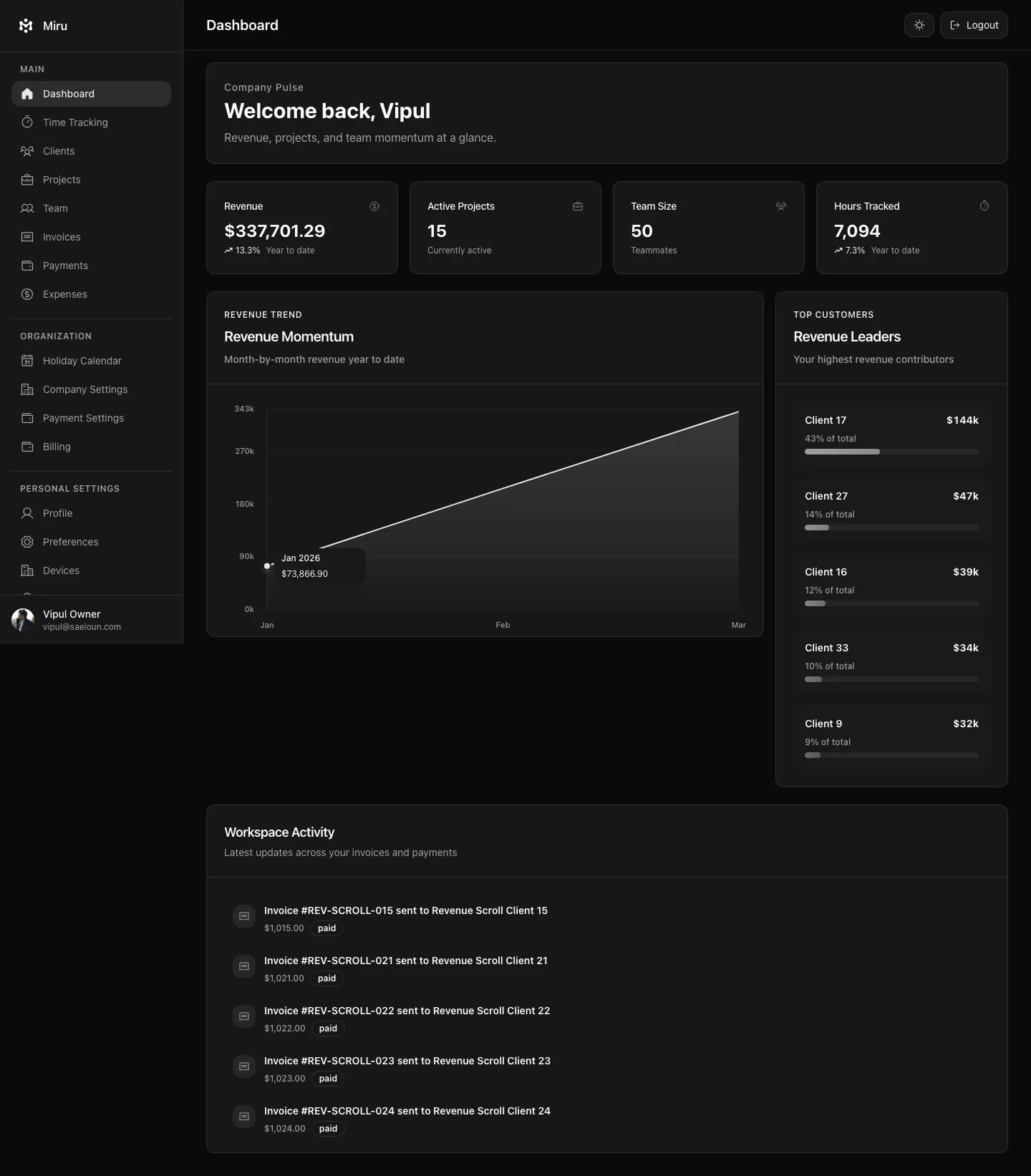
6. Navigate to http://0.0.0.0:3000 to access your running app.
Rails 8.0.2 Features
This app is built on Rails 8.0.2 with the following modern features:
- Solid Queue for background job processing (database-based, no external dependencies)
- Vite for asset bundling and dev server
- Hotwire (Turbo + Stimulus) for interactive UI
- PostgreSQL with strong migrations for safe schema changes
- pnpm for faster JavaScript package management
7. To run rails console
When app is running, open a new terminal tab and run:
$ docker-compose exec app bundle exec rails consoleOR run:
$ docker-compose run --rm app bundle exec rails consolewhen app is not running.
Similarly if you add new migrations or want to rollback previous one you can always follow the above mentioned procedure like:
$ docker-compose exec app bundle exec rails db:migrateOR
$ docker-compose run --rm app bundle exec rails db:migrateTo receive the emails in non-production apps.
Go to /sent_emails for accessing the emails(for /sent_emails route to work,
add EMAIL_DELIVERY_METHOD='letter_opener_web' to .env)
User Test credentials
| Role | Password | |
|---|---|---|
| Owner | vipul@example.com | welcome |
| Admin | supriya@example.com | welcome |
| Employee | sam@example.com | welcome |
| Client | oliver@example.com | welcome |