macOS Development Setup
This guide sets up Miru on macOS for local development.
Prerequisites
Before starting, ensure you have:
- macOS 12.0 (Monterey) or later
- Xcode Command Line Tools installed
- At least 8GB of RAM (16GB recommended)
- 10GB of free disk space
Install Xcode Command Line Tools
# Install if not already present
xcode-select --install

# Verify installation
xcode-select -p
# Expected output: /Library/Developer/CommandLineTools
Step 1: Fork and Clone the Repository
1.1 Fork the Repository
Visit github.com/saeloun/miru-web and click the “Fork” button to create your own copy.
1.2 Clone Your Fork
# Clone your forked repository
git clone https://github.com/<your-username>/miru-web.git
cd miru-web

# Add upstream remote for staying updated
git remote add upstream https://github.com/saeloun/miru-web.git
git fetch upstream
Step 2: Install Homebrew (if needed)
Homebrew is the package manager for macOS.
# Install Homebrew
/bin/bash -c "$(curl -fsSL https://raw.githubusercontent.com/Homebrew/install/HEAD/install.sh)"

# Verify installation
brew --version
# Expected: Homebrew 4.x.x or later
Step 3: Install Version Managers
We recommend using mise for managing Ruby and Node versions. It’s faster and more modern than traditional version managers.
Option A: Using mise (Recommended)
# Install mise
brew install mise

# Add mise to your shell (choose based on your shell)
# For zsh (default on macOS):
echo 'eval "$(mise activate zsh)"' >> ~/.zshrc
source ~/.zshrc

# For bash:
echo 'eval "$(mise activate bash)"' >> ~/.bash_profile
source ~/.bash_profile

# Install Ruby and Node
mise install ruby@4.0.1
mise install node@25.8.2

# Set as default for this project
mise use ruby@4.0.1
mise use node@25.8.2

# Verify installations
ruby --version  # Should show: ruby 4.0.1
node --version  # Should show: v25.8.2
Option B: Using Traditional Version Managers
Click to expand rvm and nvm installation
Install RVM for Ruby
# Install GPG keys
gpg --keyserver hkp://keys.gnupg.net --recv-keys \
    409B6B1796C275462A1703113804BB82D39DC0E3 \
    7D2BAF1CF37B13E2069D6956105BD0E739499BDB

# Install RVM
\curl -sSL https://get.rvm.io | bash -s stable

# Load RVM
source ~/.rvm/scripts/rvm

# Install Ruby
rvm install 4.0.1
rvm use 4.0.1 --default
Install NVM for Node
# Install NVM
curl -o- https://raw.githubusercontent.com/nvm-sh/nvm/v0.39.7/install.sh | bash

# Load NVM
export NVM_DIR="$HOME/.nvm"
[ -s "$NVM_DIR/nvm.sh" ] && \. "$NVM_DIR/nvm.sh"

# Install Node
nvm install 25.8.2
nvm use 25.8.2
nvm alias default 25.8.2
Step 4: Install PostgreSQL
# Install PostgreSQL 16 (latest stable)
brew install postgresql@16

# Start PostgreSQL service
brew services start postgresql@16

# Create a database user for development
createuser -s postgres

# Verify PostgreSQL is running
psql -U postgres -c "SELECT version();"
Configure PostgreSQL (Optional)
# Set a password for the postgres user (recommended)
psql -U postgres -c "ALTER USER postgres PASSWORD 'your_secure_password';"

# Create a specific user for Miru
createuser -s miru_dev
psql -U postgres -c "ALTER USER miru_dev PASSWORD 'miru_dev_password';"
Step 5: Install Dependencies and Setup
5.1 Install Ruby Dependencies
# Install bundler
gem install bundler

# Install all gems
bundle install

# If you encounter native extension errors:
brew install shared-mime-info
bundle config build.nokogiri --use-system-libraries
bundle install
5.2 Install JavaScript Dependencies
# Using pnpm (faster and more efficient)
npm install -g pnpm
pnpm install

# Or using npm
npm install
5.3 Setup the Application
# Run the automated setup script
bin/setup

# This script will:
# 1. Install dependencies
# 2. Create and migrate the database
# 3. Seed sample data
# 4. Prepare test database
# 5. Remove old logs and tempfiles
5.4 Environment Configuration
# Copy the example environment file
cp .env.example .env

# Edit .env with your favorite editor
# Key variables to configure:
# - DATABASE_URL (if not using default)
# - SECRET_KEY_BASE (generate with: bin/rails secret)
Step 6: Run the Application
Option A: Using Foreman (All Services)
# Start all services defined in Procfile.dev
foreman start -f Procfile.dev

# This starts:
# - Rails server on http://localhost:3000
# - Vite dev server for assets
# - Solid Queue for background jobs (using database)
Option B: Run Services Individually
# Terminal 1: Rails server
bin/rails server

# Terminal 2: Vite for assets
bin/vite dev

# Terminal 3: Solid Queue for background jobs (database-based)
bundle exec rake solid_queue:start
Step 7: Access the Application
- Open your browser and navigate to http://localhost:3000
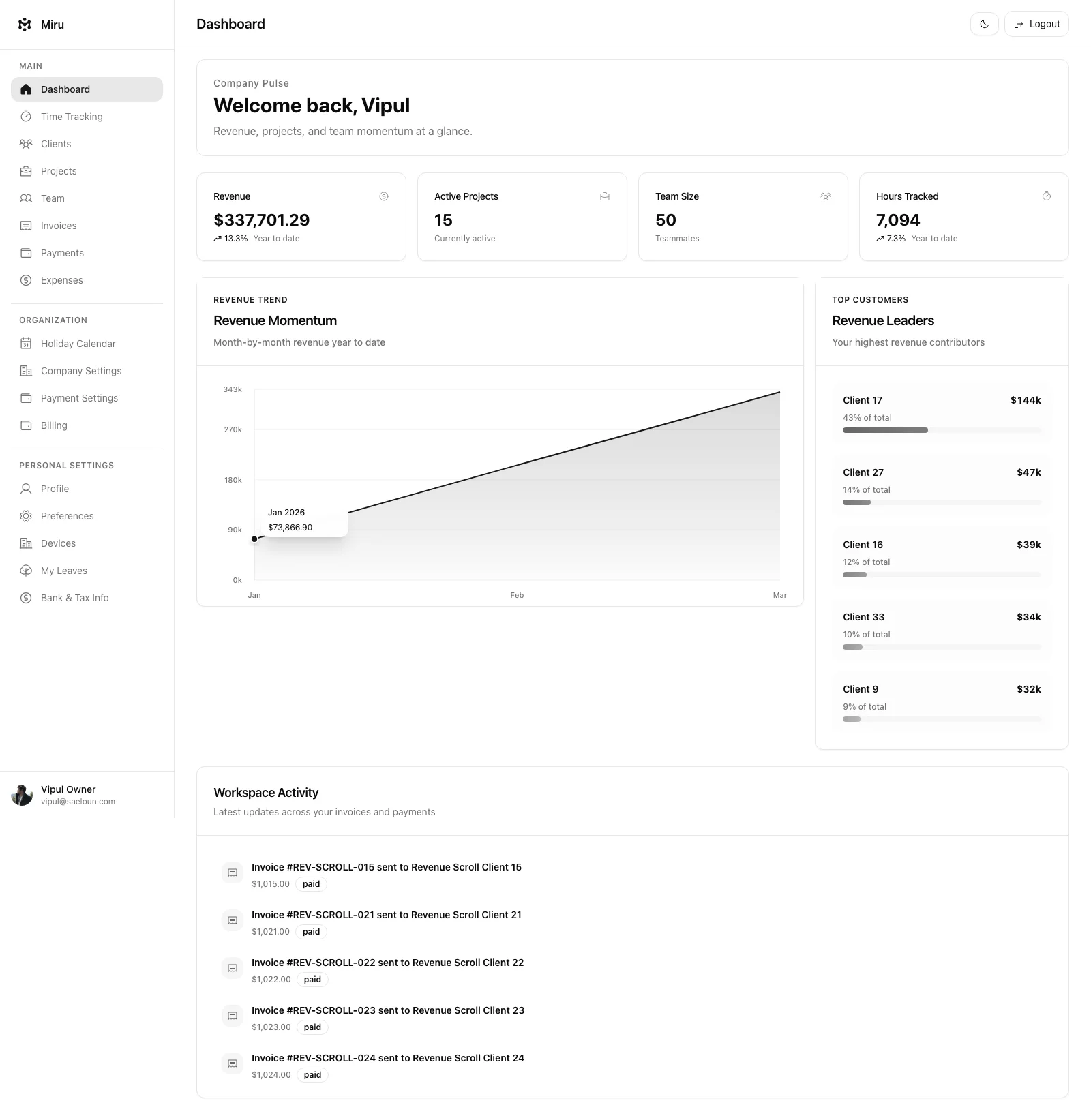
- You should see the Miru login page
Default Test Credentials
| Role | Password | |
|---|---|---|
| Owner | vipul@example.com | welcome |
| Admin | supriya@example.com | welcome |
| Employee | sam@example.com | welcome |
| Client | oliver@example.com | welcome |
Step 8: Development Tools Setup
Install Recommended VS Code Extensions
# If using VS Code
code --install-extension castwide.solargraph
code --install-extension rebornix.ruby
code --install-extension dbaeumer.vscode-eslint
code --install-extension esbenp.prettier-vscode
code --install-extension bradlc.vscode-tailwindcss
Configure Git Hooks
# Install Lefthook for Git hooks
brew install lefthook

# Install hooks
lefthook install

# This enables:
# - Pre-commit linting
# - Commit message validation
# - Automatic code formatting
Troubleshooting
Common Issues and Solutions
PostgreSQL Connection Error
# Error: could not connect to server
# Solution: Ensure PostgreSQL is running
brew services restart postgresql@16

# Check PostgreSQL logs
tail -f /opt/homebrew/var/log/postgresql@16.log
Bundle Install Failures
# Error: An error occurred while installing pg
# Solution: Install PostgreSQL development files
brew install libpq
bundle config build.pg --with-pg-config=/opt/homebrew/opt/libpq/bin/pg_config
bundle install
Node/JavaScript Issues
# Error: Cannot find module
# Solution: Clear node_modules and reinstall
rm -rf node_modules
pnpm install # or npm install

# Clear Vite cache and rebuild
bin/rails vite:clobber
bin/rails vite:build
Port Already in Use
# Error: Address already in use - bind(2)
# Find and kill the process using port 3000
lsof -i :3000
kill -9 <PID>

# Or use a different port
bin/rails server -p 3001
Helpful Commands
# View Rails logs
tail -f log/development.log

# Rails console for debugging
bin/rails console

# Database console
bin/rails dbconsole

# Run tests
bundle exec rspec

# Run linters
bundle exec rubocop
npm run lint

# Reset database
bin/rails db:drop db:create db:migrate db:seed
Email Configuration
To view emails in development:
- Add to
.env:
EMAIL_DELIVERY_METHOD='letter_opener_web'- Restart the Rails server
- Visit http://localhost:3000/sent_emails to view sent emails
Performance Tips
Speed Up Bundle Install
# Use parallel jobs
bundle config --global jobs $(sysctl -n hw.ncpu)
Speed Up Asset Compilation
# Increase Node memory for large projects
export NODE_OPTIONS="--max-old-space-size=4096"
Use Spring for Faster Rails Commands
# Spring preloads your Rails app
bin/spring status
bin/spring stop # If you encounter issues
Next Steps
Now that you have Miru running locally:
- Explore the codebase: Familiarize yourself with the project structure
- Run the test suite:
bundle exec rspecto ensure everything works - Check out open issues: Look for “good first issue” labels on GitHub
- Join our Discord: Get help and connect with other contributors
- Read the contribution guidelines: Learn about our development workflow
Additional Resources
- Rails 8 Documentation
- React 18 Documentation
- TypeScript Handbook
- Tailwind CSS Documentation
- PostgreSQL Documentation
Need help? Join our Discord community or open an issue on GitHub.