Ubuntu / Debian Development Setup
This guide sets up Miru on Ubuntu or Debian for local development.
Prerequisites
Before starting, ensure you have:
- Ubuntu 20.04 LTS+ or Debian 11+ (recommended)
- At least 8GB of RAM (16GB recommended)
- 10GB of free disk space
- Sudo access for package installation
Update System Packages
# Update package lists and upgrade existing packages
sudo apt update && sudo apt upgrade -y

# Install essential build tools
sudo apt install -y curl git build-essential libssl-dev zlib1g-dev \
    libbz2-dev libreadline-dev libsqlite3-dev wget llvm \
    libncurses5-dev xz-utils tk-dev libxml2-dev libxmlsec1-dev \
    libffi-dev liblzma-dev software-properties-common
Step 1: Fork and Clone the Repository
1.1 Configure Git (if not already done)
# Set your Git credentials
git config --global user.name "Your Name"
git config --global user.email "your.email@example.com"

# Generate SSH key for GitHub (optional but recommended)
ssh-keygen -t ed25519 -C "your.email@example.com"

# Add SSH key to GitHub
cat ~/.ssh/id_ed25519.pub
# Copy the output and add it to GitHub: Settings > SSH Keys
1.2 Fork and Clone
# Fork the repository on GitHub first, then clone your fork
git clone https://github.com/<your-username>/miru-web.git
cd miru-web

# Add upstream remote for staying updated
git remote add upstream https://github.com/saeloun/miru-web.git
git fetch upstream
Step 2: Install Version Managers
We recommend using mise for managing Ruby and Node versions as it’s faster and more modern than traditional version managers.
Option A: Using mise (Recommended)
# Install mise
curl https://mise.jdx.dev/install.sh | sh

# Add mise to your shell
echo 'eval "$(~/.local/bin/mise activate bash)"' >> ~/.bashrc
# For zsh users:
# echo 'eval "$(~/.local/bin/mise activate zsh)"' >> ~/.zshrc

# Reload your shell
source ~/.bashrc

# Install Ruby and Node
mise install ruby@4.0.1
mise install node@25.8.2

# Set as default for this project
mise use ruby@4.0.1
mise use node@25.8.2

# Verify installations
ruby --version  # Should show: ruby 4.0.1
node --version  # Should show: v25.8.2
Option B: Using Traditional Version Managers
Click to expand rvm and nvm installation
Install RVM for Ruby
# Install GPG keys for RVM
gpg --keyserver hkp://keys.gnupg.net --recv-keys \
    409B6B1796C275462A1703113804BB82D39DC0E3 \
    7D2BAF1CF37B13E2069D6956105BD0E739499BDB

# Install RVM
\curl -sSL https://get.rvm.io | bash -s stable

# Load RVM
source ~/.rvm/scripts/rvm

# Install Ruby
rvm install 4.0.1
rvm use 4.0.1 --default
Install NVM for Node
# Install NVM
curl -o- https://raw.githubusercontent.com/nvm-sh/nvm/v0.39.7/install.sh | bash

# Load NVM
export NVM_DIR="$HOME/.nvm"
[ -s "$NVM_DIR/nvm.sh" ] && \. "$NVM_DIR/nvm.sh"
[ -s "$NVM_DIR/bash_completion" ] && \. "$NVM_DIR/bash_completion"

# Install Node
nvm install 25.8.2
nvm use 25.8.2
nvm alias default 25.8.2
Step 3: Install PostgreSQL
# Add PostgreSQL official APT repository
wget --quiet -O - https://www.postgresql.org/media/keys/ACCC4CF8.asc | sudo apt-key add -
echo "deb http://apt.postgresql.org/pub/repos/apt/ $(lsb_release -cs)-pgdg main" | sudo tee /etc/apt/sources.list.d/pgdg.list

# Update package list
sudo apt update

# Install PostgreSQL 16 and additional components
sudo apt install -y postgresql-16 postgresql-contrib-16 postgresql-server-dev-16

# Start and enable PostgreSQL service
sudo systemctl start postgresql
sudo systemctl enable postgresql

# Verify PostgreSQL is running
sudo systemctl status postgresql
Configure PostgreSQL
# Switch to postgres user and create database user
sudo -u postgres psql -c "CREATE USER miru_dev WITH CREATEDB SUPERUSER PASSWORD 'miru_dev_password';"

# Create development database
sudo -u postgres createdb -O miru_dev miru_development

# Test connection
psql -h localhost -U miru_dev -d miru_development -c "SELECT version();"
Configure PostgreSQL Authentication (Optional)
# Edit PostgreSQL configuration for local development
sudo nano /etc/postgresql/16/main/pg_hba.conf

# Add this line for local development (be cautious in production):
# local   all             miru_dev                                trust
# host    all             miru_dev        127.0.0.1/32            trust

# Restart PostgreSQL
sudo systemctl restart postgresql
Step 4: Install Dependencies and Setup
4.1 Install Ruby Dependencies
# Update RubyGems and install bundler
gem update --system
gem install bundler

# Install all gems
bundle install

# If you encounter issues with native extensions:
sudo apt install -y libpq-dev
bundle config build.pg --with-pg-config=/usr/bin/pg_config
bundle install
4.2 Install JavaScript Dependencies
# Install pnpm (recommended for faster installs)
curl -fsSL https://get.pnpm.io/install.sh | sh
source ~/.bashrc

# Install dependencies
pnpm install

# Or use npm if you prefer
npm install
4.3 Setup the Application
# Copy the environment file
cp .env.example .env

# Edit .env with your database configuration
nano .env

# Add these lines to .env:
# DATABASE_USERNAME=miru_dev
# DATABASE_PASSWORD=miru_dev_password
# DATABASE_HOST=localhost

# Run the automated setup script
bin/setup

# If setup fails, try manual setup:
bin/rails db:create
bin/rails db:migrate
bin/rails db:seed
Step 5: Run the Application
Option A: Using Foreman (All Services)
# Install foreman if not already installed
gem install foreman

# Start all services
foreman start -f Procfile.dev

# This will start:
# - Rails server on http://localhost:3000
# - Vite dev server for assets
# - Solid Queue for background jobs (database-based)
Option B: Run Services Individually
# Terminal 1: Rails server
bin/rails server

# Terminal 2: Vite for assets
bin/vite dev

# Terminal 3: Solid Queue for background jobs (database-based)
bundle exec rake solid_queue:start
Step 6: Access the Application
- Open your browser and navigate to http://localhost:3000
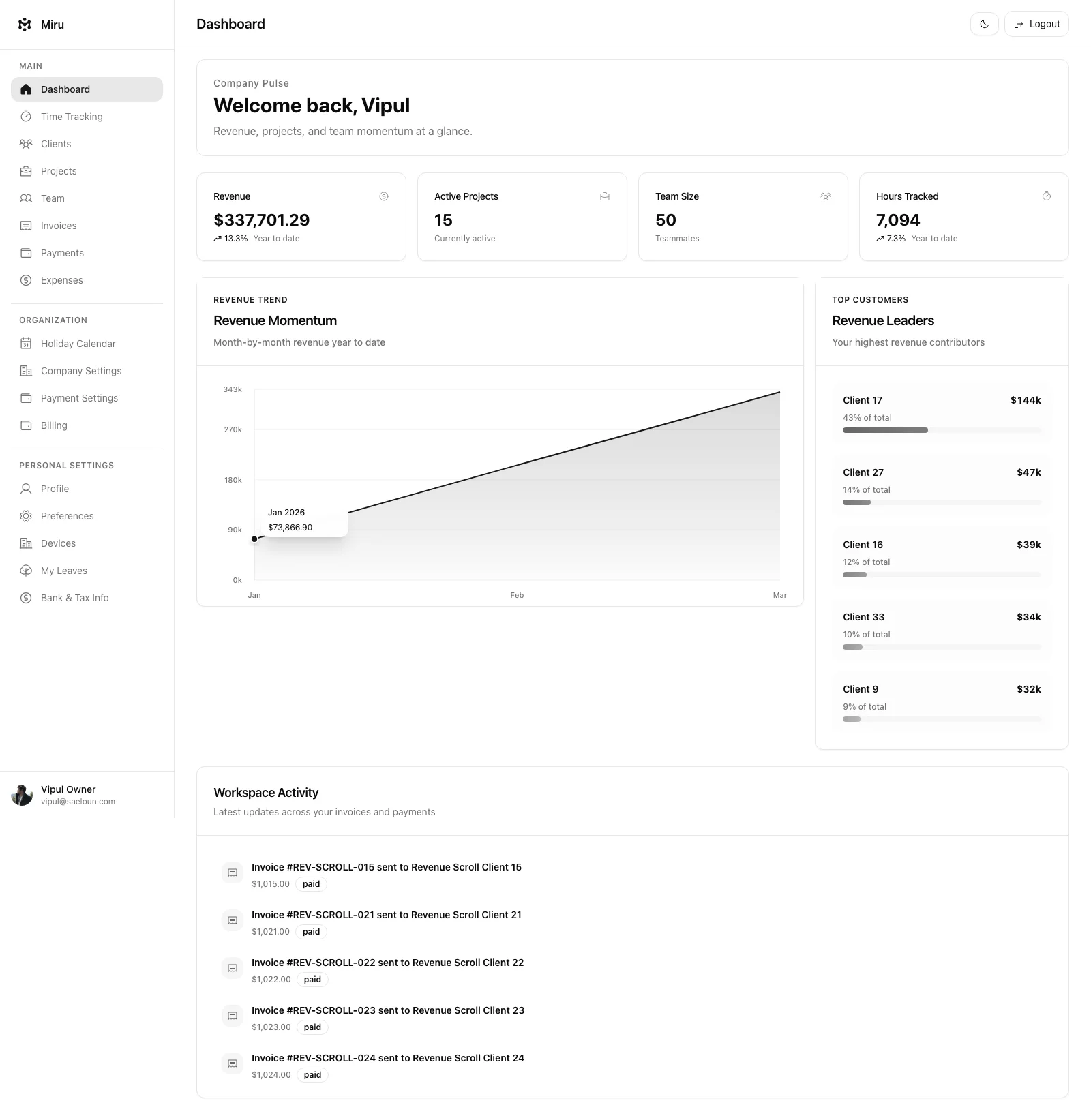
- You should see the Miru login page
Default Test Credentials
| Role | Password | |
|---|---|---|
| Owner | vipul@example.com | welcome |
| Admin | supriya@example.com | welcome |
| Employee | sam@example.com | welcome |
| Client | oliver@example.com | welcome |
Step 7: Development Tools Setup
Install VS Code (Optional)
# Download and install VS Code
wget -qO- https://packages.microsoft.com/keys/microsoft.asc | gpg --dearmor > packages.microsoft.gpg
sudo install -o root -g root -m 644 packages.microsoft.gpg /etc/apt/trusted.gpg.d/
echo "deb [arch=amd64,arm64,armhf signed-by=/etc/apt/trusted.gpg.d/packages.microsoft.gpg] https://packages.microsoft.com/repos/code stable main" | sudo tee /etc/apt/sources.list.d/vscode.list

sudo apt update
sudo apt install -y code

# Install useful extensions
code --install-extension castwide.solargraph
code --install-extension rebornix.ruby
code --install-extension dbaeumer.vscode-eslint
code --install-extension esbenp.prettier-vscode
code --install-extension bradlc.vscode-tailwindcss
Install Git Hooks
# Install Lefthook for Git hooks
curl -1sLf 'https://dl.cloudsmith.io/public/evilmartians/lefthook/setup.deb.sh' | sudo -E bash
sudo apt install lefthook

# Install hooks in the project
lefthook install

# This enables:
# - Pre-commit linting
# - Commit message validation
# - Automatic code formatting
Troubleshooting
Common Issues and Solutions
PostgreSQL Connection Issues
# Check if PostgreSQL is running
sudo systemctl status postgresql

# Restart PostgreSQL
sudo systemctl restart postgresql

# Check PostgreSQL logs
sudo tail -f /var/log/postgresql/postgresql-16-main.log

# Test database connection
psql -h localhost -U miru_dev -d miru_development
Bundle Install Failures
# Install additional development libraries
sudo apt install -y build-essential libpq-dev libxml2-dev libxslt1-dev \
    libffi-dev libyaml-dev libreadline-dev

# Clear bundle cache and reinstall
bundle clean --force
bundle install
Node/JavaScript Issues
# Clear npm cache
npm cache clean --force

# Remove and reinstall node_modules
rm -rf node_modules package-lock.json
pnpm install

# Or with npm:
npm install
Permission Issues
# Fix file permissions
sudo chown -R $USER:$USER ~/.npm
sudo chown -R $USER:$USER ~/.config

# For Ruby gems
sudo chown -R $USER:$USER ~/.gem
Port Already in Use
# Find process using port 3000
sudo netstat -tulpn | grep :3000

# Kill the process (replace PID)
kill -9 <PID>

# Or use a different port
bin/rails server -p 3001
Performance Optimization
Speed Up Bundle Install
# Configure bundler to use parallel jobs
bundle config --global jobs $(nproc)
Speed Up Asset Compilation
# Increase Node memory limit
export NODE_OPTIONS="--max-old-space-size=4096"
Email Configuration
To view emails in development:
- Add to
.env:
EMAIL_DELIVERY_METHOD='letter_opener_web'- Restart the Rails server
- Visit http://localhost:3000/sent_emails to view sent emails
Useful Commands
# View application logs
tail -f log/development.log

# Rails console for debugging
bin/rails console

# Database console
bin/rails dbconsole

# Run tests
bundle exec rspec

# Run linters
bundle exec rubocop
pnpm lint

# Reset database
bin/rails db:drop db:create db:migrate db:seed

# Check system resources
htop

# Monitor PostgreSQL processes
ps aux | grep postgres
System Monitoring
Check System Resources
# Memory usage
free -h

# Disk usage
df -h

# CPU usage
htop

# Check Ruby processes
ps aux | grep ruby

# Check Node processes
ps aux | grep node
Next Steps
Now that you have Miru running locally:
- Explore the codebase: Familiarize yourself with the project structure
- Run the test suite:
bundle exec rspecto ensure everything works - Check out open issues: Look for “good first issue” labels on GitHub
- Join our Discord: Get help and connect with other contributors
- Read the contribution guidelines: Learn about our development workflow
Additional Resources
- Ruby on Rails Guides
- PostgreSQL Documentation
- Redis Documentation
- Ubuntu Server Guide
- Debian Administration
Need help? Join our Discord community or open an issue on GitHub.